


I am a passionate Computer Science & Engineering student from Techno Main Salt Lake (Kolkata), CSE'27 batch. I write what I learn in my blog series. Feel free to look around, and provide your valuable feedback.
Introduction
In the previous article, we learned what Git is, why it is used, and how to work with it using basic commands. While that is enough to start using Git effectively, it does not explain what Git is actually doing behind the scenes.
In this article, we will take a step deeper and explore how Git works internally. Instead of focusing on commands and workflows, we will focus on Git’s internal design—how it stores data, how it tracks changes, and why it is fast, reliable, and safe to use.
We will understand the role of the .git folder, which acts as the backbone of every Git repository. We will also break down Git’s core building blocks—objects such as blobs, trees, and commits—and see how they work together to represent a project’s history.
The goal of this article is not to memorize internal commands, but to build a clear mental model of Git. Once you understand how Git stores and tracks data internally, many concepts such as commits, branches, and merges will start to make much more sense.
Let’s start by understanding how Git works internally at a high level.
How Git Works Internally
To understand Git’s internal working, it is important to first understand what Git actually stores. Unlike traditional version control systems that focus on tracking file changes line by line, Git approaches version control in a different and more efficient way.
At its core, Git is a content-based system. It does not primarily think in terms of files or folders; instead, it thinks in terms of content. Every piece of data that Git stores is identified by the content itself.
Rather than storing “changes” to files, Git stores snapshots of the project’s state. Each snapshot represents how the project looked at a specific point in time. If a file has not changed between snapshots, Git does not store it again—instead, it reuses the already stored data. This design makes Git both fast and storage-efficient.
Internally, Git organizes everything as a collection of objects. These objects form the foundation of how Git stores files, directories, and history. Every commit, every version of a file, and every directory structure is represented using these objects.
Another important idea is that Git’s history is not linear by design. Instead of a straight line of versions, Git stores history as a graph of commits, where each commit points to one or more parent commits. This is what allows Git to support branching and merging so naturally.
In simple terms:
Git stores content, not differences
Git records snapshots, not edits
Git history forms a graph, not a list
Now that we have a high-level understanding of how Git stores and tracks data, let’s take a closer look at the .git folder — the place where all of this information actually is stored.
Understanding the .git Folder
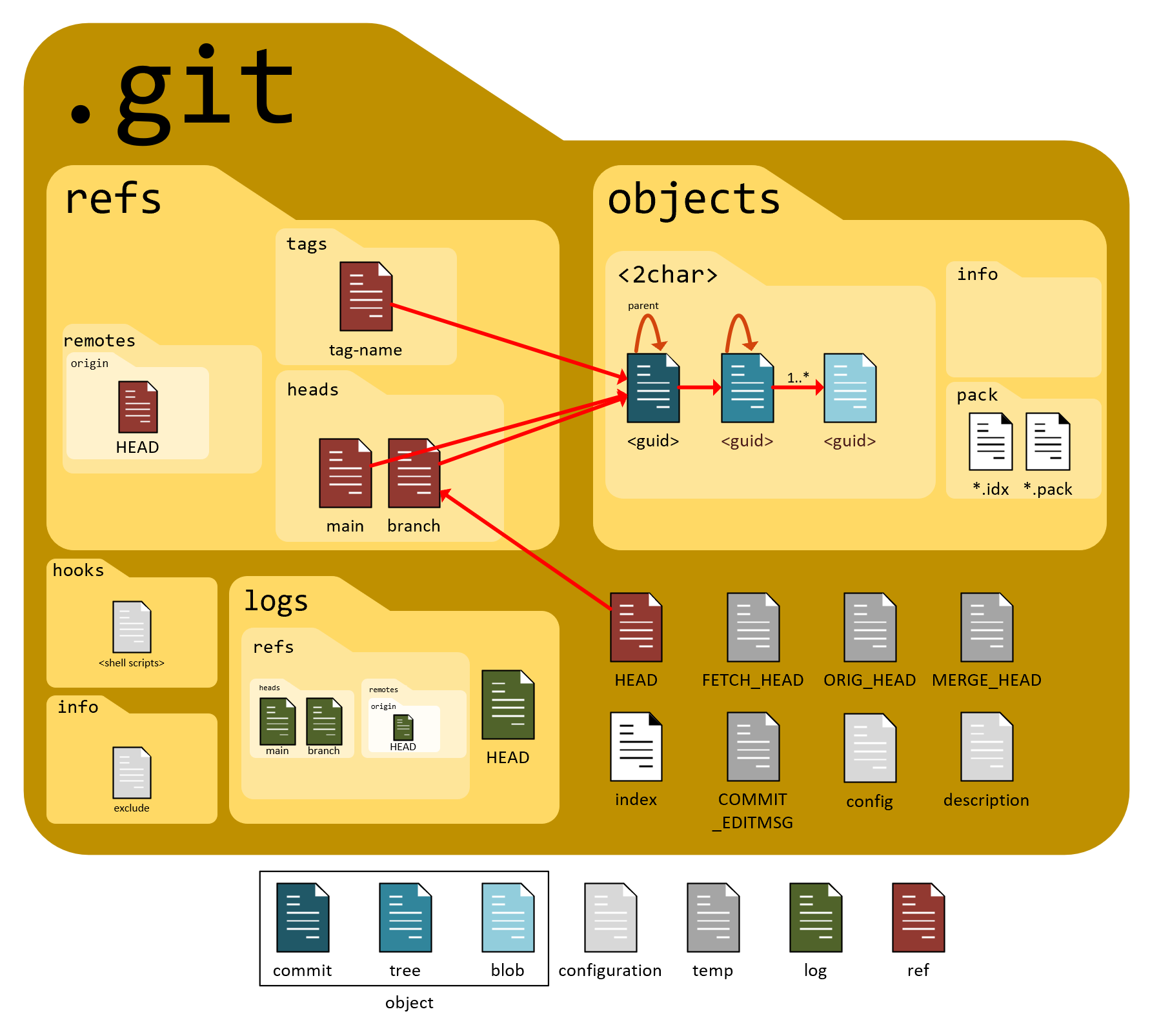
Every Git repository contains a hidden directory named .git. This folder is the heart of Git—it is where Git stores everything it needs to track and manage the project. In fact, if the .git folder is deleted, the project immediately stops being a Git repository, even though the project files themselves still exist.
Simply put, the .git folder acts as Git’s database. It stores the complete history of the project, all commits, branches, tags, and the information Git needs to understand the current state of the repository.
Why the .git Folder Exists
Git separates project files from version control data. Your working directory contains the files you edit, while the .git folder contains the data Git uses to track those files over time. This separation allows Git to manage history efficiently without interfering with your actual project files.
Because all version control information lives inside .git, Git can:
Track every version of the project
Move between commits instantly
Support branching and merging
Ensure data integrity
Important Components Inside .git
You do not need to understand every file inside the .git folder, but a few key components are important for building a mental model.
objects/
This directory stores all Git objects. Every version of a file, directory structure, and commit is ultimately stored here. Git never modifies these objects once they are created, which helps maintain integrity.
refs/
This directory contains references to commits, such as branches and tags. Branches are simply names that point to specific commits stored in the objects directory.
HEAD
The HEAD file tells Git where you currently are in the repository. It usually points to a branch, which in turn points to the latest commit on that branch.
index
The index represents the staging area. It keeps track of what changes are prepared to be included in the next commit. This is why staging exists as a separate step in Git’s workflow.
config
This file stores repository-specific configuration settings, such as remote URLs and branch behavior.
Now that we understand where Git stores its data, next comes how this data is represented internally using Git objects.
Git Objects: Blob, Tree, and Commit
Internally, Git represents all data using a small set of fundamental building blocks called objects. These objects are stored inside the .git/objects directory and form the foundation of how Git tracks files, directories, and project history.
There are three primary Git objects that matter most at a conceptual level: blob, tree, and commit.
Blob Object
A blob (binary large object) stores the content of a file.
Important characteristics of a blob:
It stores only the file’s content, not the filename
Two files with identical content will point to the same blob
If the content changes, Git creates a new blob
This means Git does not care about filenames at this level—it only cares about what the file contains.
Tree Object
A tree represents a directory structure.
A tree object:
Maps filenames to blobs (files) or other trees (subdirectories)
Stores directory hierarchy
Connects filenames with their corresponding content
Commit Object
A commit ties everything together.
A commit object contains:
A reference to a tree (the project’s structure at that moment)
A reference to its parent commit(s)
Metadata such as:
author
timestamp
commit message
A commit represents a snapshot of the entire project, not just individual files.
How These Objects Work Together
The relationship between Git objects can be visualized like this:
Commit → Tree → Blob(s)
The commit represents a point in history
The tree represents the directory layout at that point
The blobs represent the actual file contents
This object-based design is what allows Git to:
Reuse unchanged data efficiently
Track history reliably
Support branching and merging naturally
Now that we understand the what Git stores internally, Let’s see how Git tracks changes over time using those objects.
How Git Tracks Changes Internally
One of the most common misconceptions about Git is that it tracks changes or differences between files. Internally, Git does something slightly different and more powerful.
Git tracks changes by storing snapshots of the project, not by recording line-by-line differences. Each snapshot represents the complete state of the project at a particular moment in time.
When a file is modified, Git does not overwrite the old version. Instead, it creates a new object to represent the new content. If a file remains unchanged between commits, Git simply reuses the existing object rather than storing the same data again. This makes Git both fast and storage-efficient.
First Commit vs Subsequent Commits
During the first commit, everything in the project is new to Git:
New blobs are created for file contents
A new tree is created for the directory structure
A commit object is created to reference them
For subsequent commits:
Only files whose content has changed produce new blobs
Unchanged files continue to reference existing blobs
A new tree and commit object are still created to represent the new snapshot
Even though Git always creates a snapshot, it avoids duplicating data by reusing unchanged objects.
Why This Design Matters
This snapshot-based design has several advantages:
Fast commits, even for large projects
Efficient storage through object reuse
Reliable history that can be traversed easily
Natural support for branching and merging
Because commits reference trees and blobs by their content, Git can quickly determine whether data already exists and does not need to be stored again.
A Mental Model to Remember
Think of Git as a system that:
Records states, not edits
Creates new objects only when content changes
Links snapshots together to form history
Understanding this internal behavior explains why Git behaves differently from traditional version control systems and sets the stage for understanding what happens during git add and git commit.
Now we know how Git tracks changes internally, Let’s look at what actually happens inside Git when we stage changes using git add.
What Happens Internally During git add

When you run git add, Git is not creating history yet. Instead, it is preparing data that may become part of the next commit. Internally, this step is all about object creation and indexing, not saving snapshots permanently.
Step 1: Content Is Read and Hashed
When a file is added, Git:
Reads the content of the file
Generates a hash based on that content
This hash uniquely identifies the file’s content. If the same content already exists in the repository, Git recognizes it immediately.
Step 2: Blob Object Creation
If the content is new, Git:
Creates a blob object
Stores it inside the
.git/objectsdirectory
If the content already exists, Git reuses the existing blob instead of creating a new one. This is how Git avoids duplication.
At this point:
The blob exists
But it is not part of history yet
Step 3: Updating the Index (Staging Area)
After creating or locating the blob, Git updates the index (also known as the staging area).
The index:
Records which blobs are selected
Maps file paths to their corresponding blob objects
Represents the planned state of the next commit
This is why the staging area exists—it allows Git to build the next snapshot incrementally and selectively.
What git add Does NOT Do
It is important to understand what does not happen during git add:
No commit is created
No project history is modified
No branch pointers are moved
git add only prepares data. History is created only during a commit.
What Happens Internally During git commit
Unlike git add, which only prepares data, git commit is the step where Git actually creates history. Internally, this is where a new snapshot of the project is finalized and permanently recorded.
Step 1: Building the Tree Object
When a commit is made, Git looks at the index (staging area) and constructs a tree object that represents the directory structure of the project at that moment.
This tree:
Maps filenames to blob objects
Represents how the project is organized
Reflects exactly what was staged
Only staged files are included in this tree. Unstaged changes are ignored.
Step 2: Creating the Commit Object
After the tree is created, Git creates a commit object.
The commit object stores:
A reference to the tree
A reference to the parent commit (or commits)
Metadata such as:
author
date and time
commit message
This commit object represents a complete snapshot of the project.
Step 3: Updating Branch and HEAD
Once the commit object is created:
The current branch pointer is moved to this new commit
HEADcontinues to point to the current branch
This is how Git extends the project’s history and keeps track of where the latest work is.
What git commit Changes
After a commit:
History is updated
A new snapshot exists
The branch now points to the latest commit
What it does not change:
Unstaged files
Previously created commits
Other branches
Why This Matters
Because commits are built from objects that reference content by hash:
Git history is reliable
Unchanged data is reused
Snapshots are efficient
This object-based approach is what allows Git to scale well even for very large projects.
How Git Uses Hashes to Ensure Integrity
A key reason Git is reliable and trustworthy is its use of cryptographic hashes. Internally, Git uses hashes to uniquely identify and protect every piece of data it stores.
Whenever Git stores something—whether it is a file’s content, a directory structure, or a commit—it generates a hash value based on that content. This hash acts like a fingerprint: even a tiny change in the content produces a completely different hash.
Content-Based Identification
Git does not assign random IDs to objects. Instead:
The hash is derived from the content itself
Identical content always produces the same hash
Different content always produces a different hash
Because of this, Git can immediately tell whether it has already stored a particular piece of data. If the content already exists, Git simply reuses it.
How Hashes Protect History
Commits in Git are not isolated. Each commit stores:
A reference to its tree
A reference to its parent commit(s)
Since these references are hashes, every commit is linked to the ones before it. If someone attempts to modify an older commit:
Its hash would change
All subsequent commits would break
Git would immediately detect the inconsistency
This makes Git history tamper-evident.
Why This Matters in Practice
Because of hash-based integrity:
Git can detect corrupted data
Git ensures history has not been altered silently
Developers can trust that the project’s history is consistent
This design is especially important for collaboration, where multiple developers rely on the same project history across different machines.
A Simple Mental Model
You can think of Git’s integrity system like this:
Content → Hash
Hash → Identity
Identity → Trust
As long as the hashes match, Git knows the data is exactly what it should be.
Conclusion
In this article, we explored how Git works internally by looking beyond commands and workflows. We examined the role of the .git folder, which serves as the backbone of every Git repository, and understood how Git stores and manages data using objects such as blobs, trees, and commits.
We learned that Git tracks projects by recording snapshots, not differences, and that it efficiently reuses unchanged data to save space and improve performance. We also saw what happens internally during git add and git commit, helping us understand how data is prepared, structured, and finally recorded as history.
Finally, we looked at how Git uses hashes to ensure data integrity, making project history reliable and tamper-evident. Together, these concepts form a clear mental model of Git—one that explains why Git is fast, flexible, and well-suited for collaborative development.
With this internal understanding, higher-level Git concepts such as branching, merging, and rebasing become much easier to reason about. In upcoming articles, we’ll be discussing about why version control even exists, more specifically, why using pendrive was problematic.
Until then, keep up the good work, take ample rest, stay healthy and stay safe. Bye!


